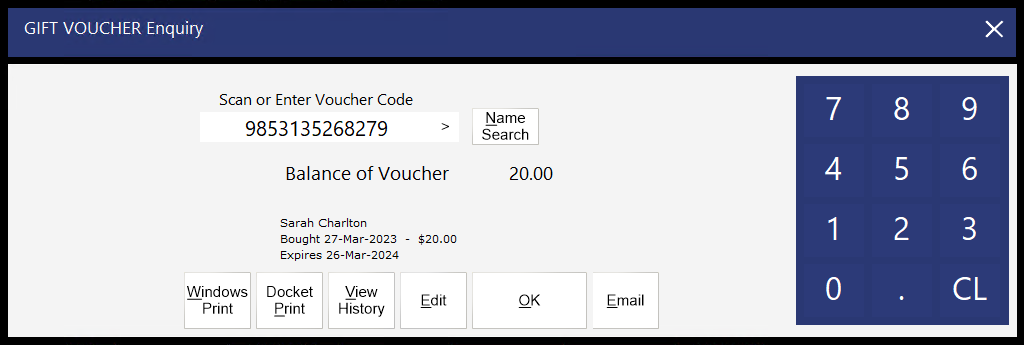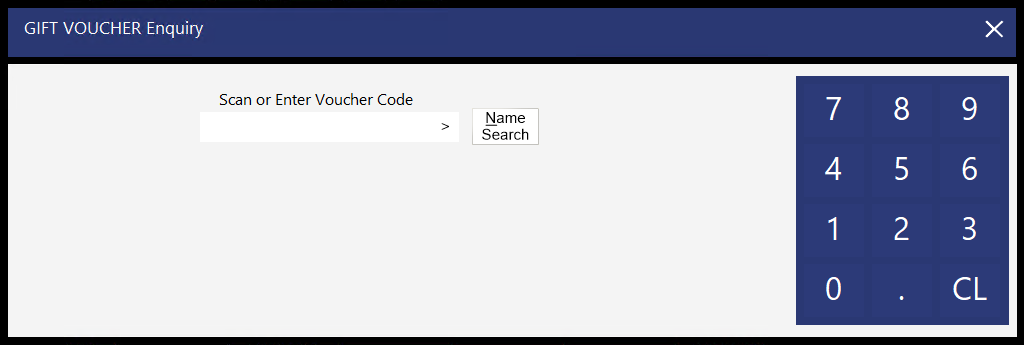
A Gift Voucher Enquiry will tell you specific details about the selected voucher.
Details of the voucher that will be displayed are Name, Purchase date, Original value, Expiry date, Current balance value, View all history and Voucher code.
To enquire about a Gift Voucher, press the Gift Voucher Enquiry button.
A screen will open where you can enter the gift voucher code, or search for the gift voucher by name.
When pressing the "Name Search" button to search for a Gift Voucher by name, you can enter either the Customer's entire name to find any exact matches, or you can enter a portion of the name to perform a wildcard search; any names which match the entered text will be displayed.
When using wildcard search, you are not required to enter any specific characters to enable or use wildcard searching functionality.
E.g. The below example shows a name search of "enny", which will display any Customer Names which contain "enny" in the name, such as "Jenny", "Penny", etc.
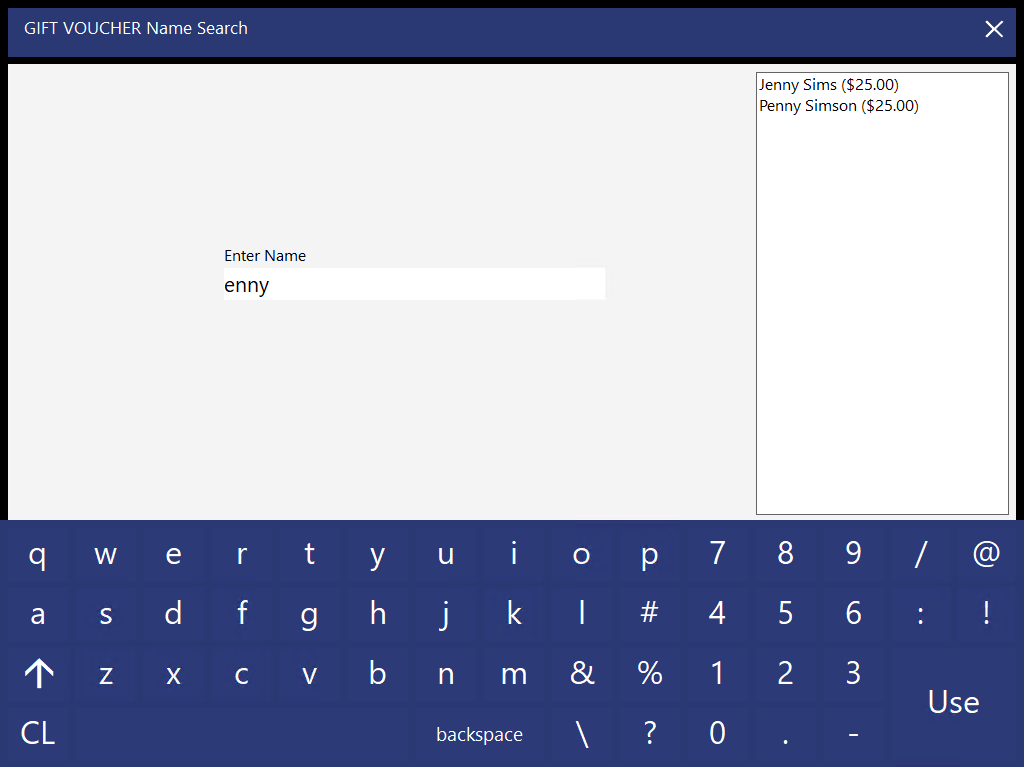
You can select a Customer Name from the list of results shown on the right-hand side, then press the "Use" button on the bottom-right corner of the window to add the selected Customer's voucher to the sale.
Once the Voucher has been added, a new window will be displayed, giving you the details of the voucher, as well as the ability to perform other actions.
Windows Print - This button will print the voucher to the Windows Printer [that is set as the Default Printer].
Docket Print – This button will re-print the voucher to the receipt printer.
View History – This will show you all redemptions that have taken place on this voucher code. It is possible to re-issue a voucher if the entire amount of the voucher has not been fully redeemed in previous transactions.
Edit – This option will open a new window where the Gift Voucher can be modified. The Gift Voucher options that can be modified include Expiry Date, Name and Email Address. Make the required changes and press 'Save'. Note that modifying the Gift Voucher will not modify the Scan Code of the already issued Gift Voucher. Also note that making any modifications to the Name and/or Email Address will not trigger the Gift Voucher to be emailed to the new Email Address. If the customer requires the Gift Voucher to be re-emailed to them after changed have been made to the Name and/or Email Address, press the 'Email' button; the Gift Voucher will be emailed to the updated Email Address and will also contain any changes that were made.
OK - This button will close the Gift Voucher Enquiry window.
Email - This function allows you to send an email of the Gift Voucher to the customer.